Docker Container GUI Display
Docker is typically used for containerized applications and development. However, it is fully capable of running GUI applications as well. This guide demonstrates how to run a GUI application from a Docker container using a Firefox example.
How It Works
The key is to pass two flags to docker run:
-e DISPLAY=$DISPLAY— forwards the host display environment variable into the container-v /tmp/.X11-unix:/tmp/.X11-unix— mounts the X11 socket so the container can communicate with the host display server
You also need to allow X clients from any host (including the container) by running xhost + before launching the container.
Example: Firefox
1. Create the Dockerfile
FROM ubuntu:26.04

ENV DEBIAN_FRONTEND noninteractive

RUN apt-get update
RUN apt-get -y install \
    firefox \
    libcanberra-gtk-module \
    libcanberra-gtk3-module
RUN apt-get clean
The libcanberra-gtk libraries are optional but recommended. Without them, warnings may appear when launching GUI apps.
2. Build the Docker image
docker build -f Dockerfile -t firefox:0.0.1 .
3. Run the container
xhost +
docker run -it --rm --privileged \
    -e DISPLAY=$DISPLAY \
    -v /tmp/.X11-unix:/tmp/.X11-unix \
    firefox:0.0.1
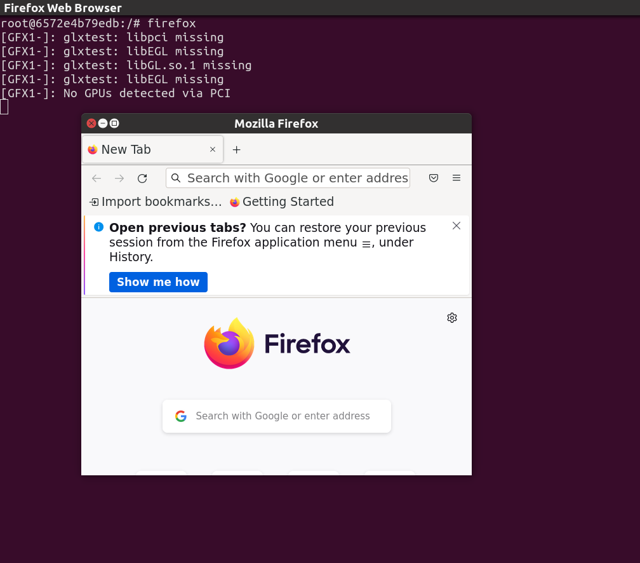
Once inside the container, launch Firefox:
firefox
4. Restrict access when done
After exiting the container, restore X access control to host-only:
xhost -
Don't forget to run xhost - after you're done. xhost + grants X server access to everyone on the network, which is a security risk if left open.
For more advanced X11 forwarding setups — including GPU-accelerated GUI applications like RViz, CARLA, or Gazebo — see the Docker Usage guide.