<?xml version="1.0" encoding="utf-8"?>
<feed xmlns="http://www.w3.org/2005/Atom">
    <id>https://chris7462.github.io/blog</id>
    <title>Yi-Chen Zhang Blog</title>
    <updated>2026-05-23T00:00:00.000Z</updated>
    <generator>https://github.com/jpmonette/feed</generator>
    <link rel="alternate" href="https://chris7462.github.io/blog"/>
    <subtitle>Yi-Chen Zhang Blog</subtitle>
    <icon>https://chris7462.github.io/img/yc.ico</icon>
    <entry>
        <title type="html"><![CDATA[Fix Pixel 8 Fingerprint Scanner After Screen Replacement (Linux)]]></title>
        <id>https://chris7462.github.io/blog/2026/05/23/pixel8-fingerprint</id>
        <link href="https://chris7462.github.io/blog/2026/05/23/pixel8-fingerprint"/>
        <updated>2026-05-23T00:00:00.000Z</updated>
        <summary type="html"><![CDATA[After replacing the screen on a Google Pixel 8, the under-display fingerprint sensor needs to be recalibrated. Google provides an official tool at pixelrepair.withgoogle.com/udfps, but it only works on Windows and macOS — and on newer firmware versions it may report "firmware too new" and refuse to run.]]></summary>
        <content type="html"><![CDATA[<p>After replacing the screen on a Google Pixel 8, the under-display fingerprint sensor needs to be recalibrated. Google provides an official tool at <a href="https://pixelrepair.withgoogle.com/udfps" target="_blank" rel="noopener noreferrer" class="">pixelrepair.withgoogle.com/udfps</a>, but it only works on Windows and macOS — and on newer firmware versions it may report "firmware too new" and refuse to run.</p>
<p>This guide documents a working method using the command line on Linux, bypassing the browser tool entirely.</p>
<!-- -->
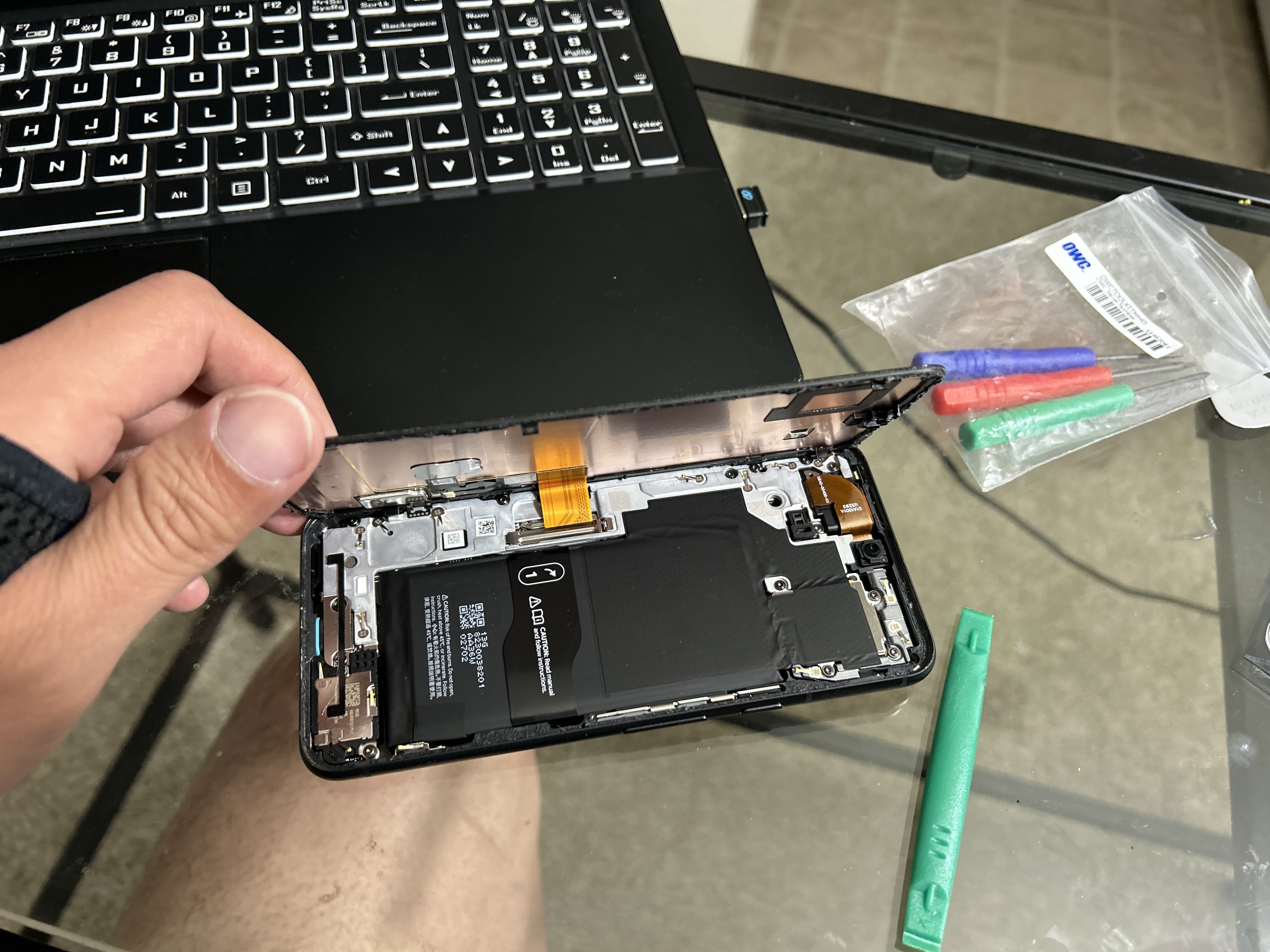
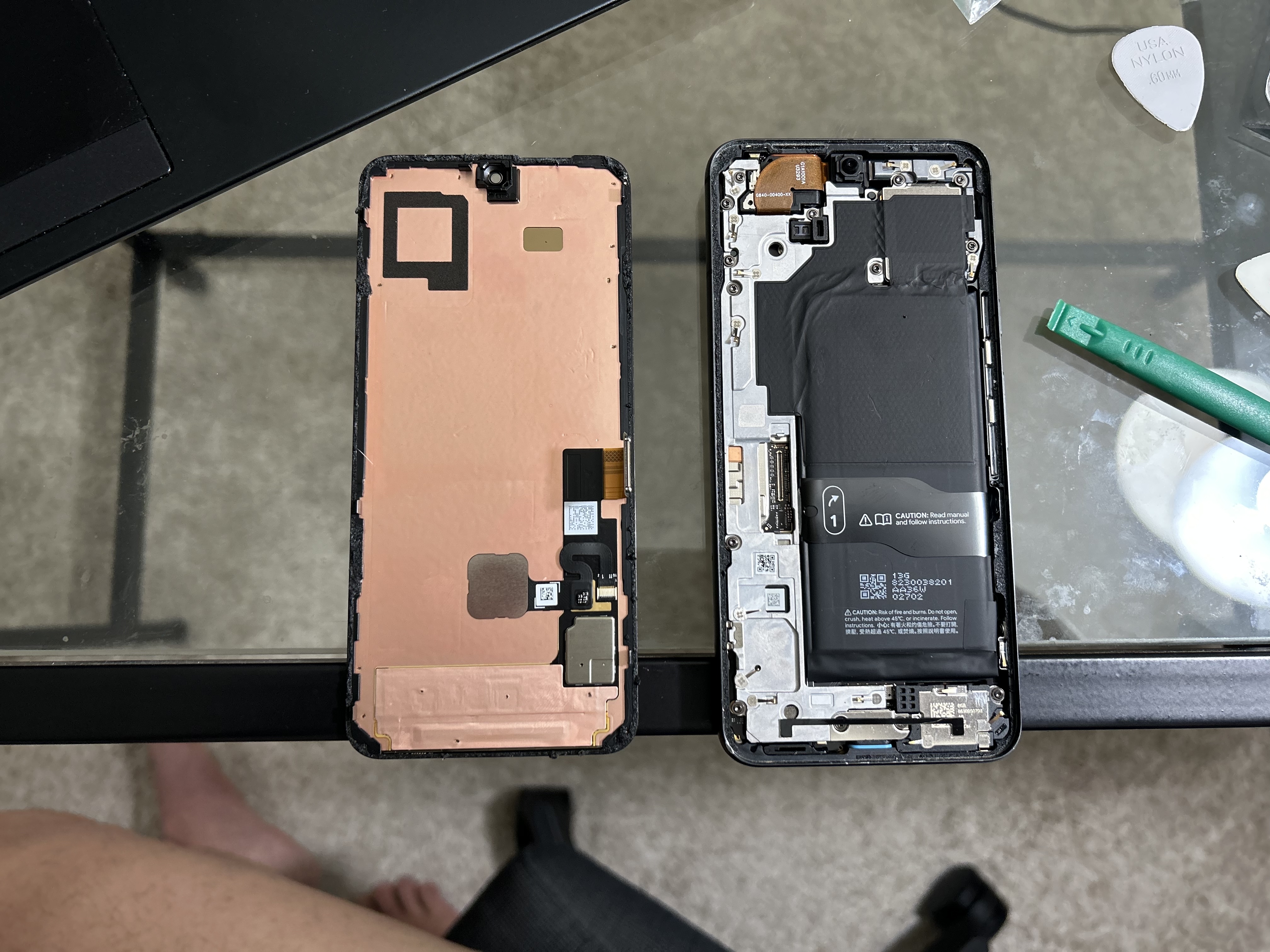
<p>Here's what the repair looked like — the screen assembly separated from the frame, and the new screen ready to boot:</p>
<p><img decoding="async" loading="lazy" alt="Opening the Pixel 8" src="https://chris7462.github.io/assets/images/pixel8-open-b77eccf823f200b38853aa95b2c42347.jpeg" width="4032" height="3024" class="img_ev3q"></p>
<p><img decoding="async" loading="lazy" alt="Screen separated from frame" src="https://chris7462.github.io/assets/images/pixel8-separated-8d68540148fc76d02785f75c631e2069.jpeg" width="4032" height="3024" class="img_ev3q"></p>
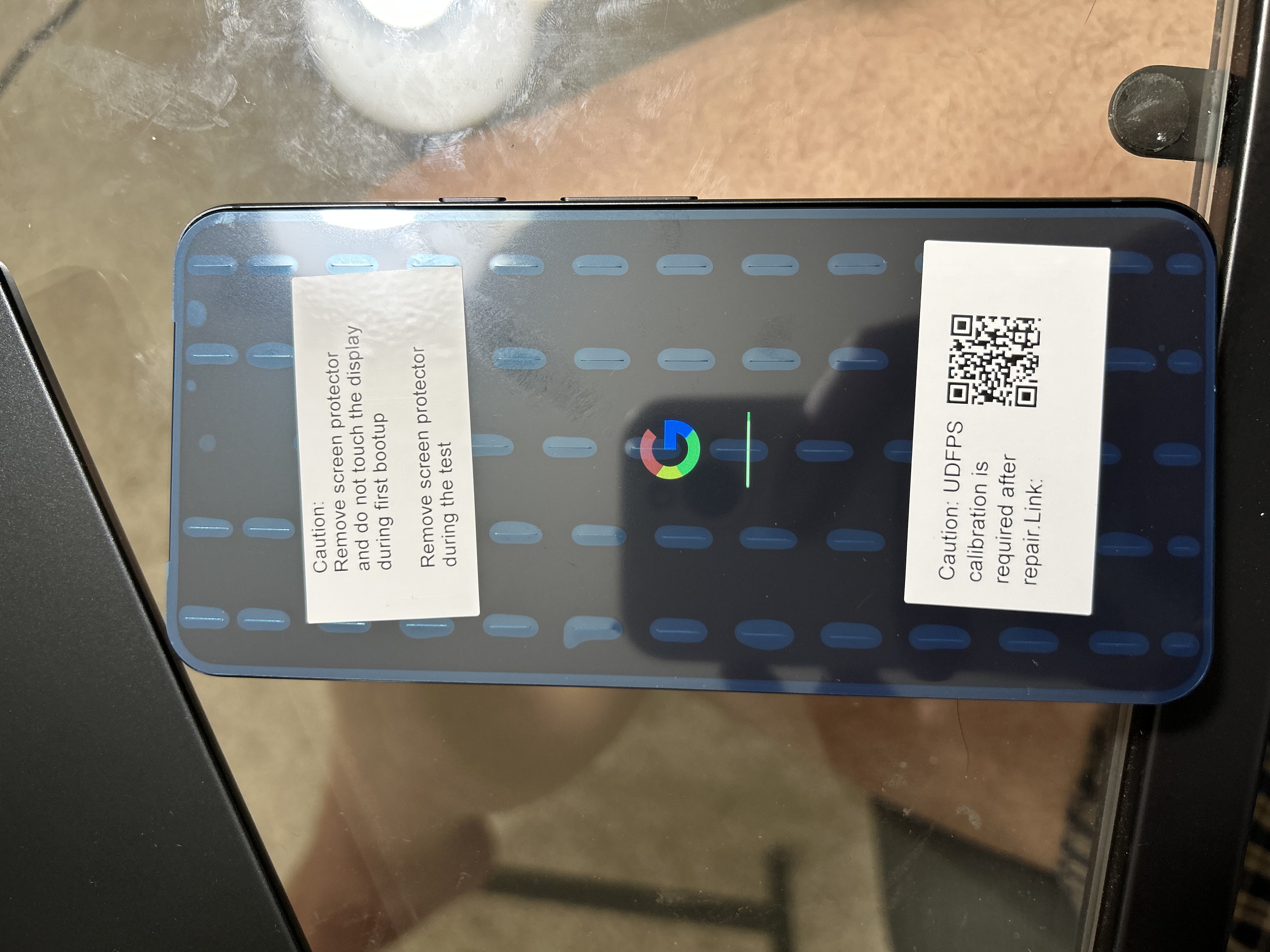
<p>After reassembly, the new screen boots up but the fingerprint sensor needs recalibration:</p>
<p><img decoding="async" loading="lazy" alt="New screen booting up with calibration notice" src="https://chris7462.github.io/assets/images/pixel8-newscreen-5692aad4206b90b7a24280e1134ce090.jpeg" width="4032" height="3024" class="img_ev3q"></p>
<h2 class="anchor anchorTargetStickyNavbar_Vzrq" id="requirements">Requirements<a href="https://chris7462.github.io/blog/2026/05/23/pixel8-fingerprint#requirements" class="hash-link" aria-label="Direct link to Requirements" title="Direct link to Requirements" translate="no">​</a></h2>
<ul>
<li class="">Linux computer (tested on Ubuntu 24.04)</li>
<li class="">USB-C cable — use the best quality cable you have (this matters)</li>
<li class=""><code>fastboot</code> installed on your computer</li>
<li class="">Google Pixel 8 with a newly replaced screen</li>
</ul>
<h2 class="anchor anchorTargetStickyNavbar_Vzrq" id="steps">Steps<a href="https://chris7462.github.io/blog/2026/05/23/pixel8-fingerprint#steps" class="hash-link" aria-label="Direct link to Steps" title="Direct link to Steps" translate="no">​</a></h2>
<h3 class="anchor anchorTargetStickyNavbar_Vzrq" id="1-enable-usb-debugging-on-the-phone">1. Enable USB Debugging on the phone<a href="https://chris7462.github.io/blog/2026/05/23/pixel8-fingerprint#1-enable-usb-debugging-on-the-phone" class="hash-link" aria-label="Direct link to 1. Enable USB Debugging on the phone" title="Direct link to 1. Enable USB Debugging on the phone" translate="no">​</a></h3>
<p>Go to <strong>Settings → About phone</strong> and tap <strong>Build number</strong> 7 times to enable Developer Options. Then go to <strong>Settings → System → Developer Options</strong> and enable <strong>USB Debugging</strong>.</p>
<h3 class="anchor anchorTargetStickyNavbar_Vzrq" id="2-install-fastboot">2. Install fastboot<a href="https://chris7462.github.io/blog/2026/05/23/pixel8-fingerprint#2-install-fastboot" class="hash-link" aria-label="Direct link to 2. Install fastboot" title="Direct link to 2. Install fastboot" translate="no">​</a></h3>
<div class="language-bash codeBlockContainer_Ckt0 theme-code-block" style="--prism-color:#393A34;--prism-background-color:#f6f8fa"><div class="codeBlockContent_QJqH"><pre tabindex="0" class="prism-code language-bash codeBlock_bY9V thin-scrollbar" style="color:#393A34;background-color:#f6f8fa"><code class="codeBlockLines_e6Vv"><div class="token-line" style="color:#393A34"><span class="token plain">sudo apt install fastboot -y</span><br></div></code></pre></div></div>
<h3 class="anchor anchorTargetStickyNavbar_Vzrq" id="3-boot-into-fastboot-mode">3. Boot into Fastboot Mode<a href="https://chris7462.github.io/blog/2026/05/23/pixel8-fingerprint#3-boot-into-fastboot-mode" class="hash-link" aria-label="Direct link to 3. Boot into Fastboot Mode" title="Direct link to 3. Boot into Fastboot Mode" translate="no">​</a></h3>
<p>Power off the phone, then hold <strong>Power + Volume Down</strong> until you see the Fastboot screen. Do not select Rescue Mode or any other option — stay on the main Fastboot screen.</p>
<h3 class="anchor anchorTargetStickyNavbar_Vzrq" id="4-connect-and-verify">4. Connect and verify<a href="https://chris7462.github.io/blog/2026/05/23/pixel8-fingerprint#4-connect-and-verify" class="hash-link" aria-label="Direct link to 4. Connect and verify" title="Direct link to 4. Connect and verify" translate="no">​</a></h3>
<p>Plug the phone into your computer and run:</p>
<div class="language-bash codeBlockContainer_Ckt0 theme-code-block" style="--prism-color:#393A34;--prism-background-color:#f6f8fa"><div class="codeBlockContent_QJqH"><pre tabindex="0" class="prism-code language-bash codeBlock_bY9V thin-scrollbar" style="color:#393A34;background-color:#f6f8fa"><code class="codeBlockLines_e6Vv"><div class="token-line" style="color:#393A34"><span class="token plain">fastboot devices</span><br></div></code></pre></div></div>
<p>You should see your device serial number listed. If nothing appears, try a different USB port or cable.</p>
<h3 class="anchor anchorTargetStickyNavbar_Vzrq" id="5-get-the-calibration-file-url">5. Get the calibration file URL<a href="https://chris7462.github.io/blog/2026/05/23/pixel8-fingerprint#5-get-the-calibration-file-url" class="hash-link" aria-label="Direct link to 5. Get the calibration file URL" title="Direct link to 5. Get the calibration file URL" translate="no">​</a></h3>
<div class="language-bash codeBlockContainer_Ckt0 theme-code-block" style="--prism-color:#393A34;--prism-background-color:#f6f8fa"><div class="codeBlockContent_QJqH"><pre tabindex="0" class="prism-code language-bash codeBlock_bY9V thin-scrollbar" style="color:#393A34;background-color:#f6f8fa"><code class="codeBlockLines_e6Vv"><div class="token-line" style="color:#393A34"><span class="token plain">fastboot oem udfps get-cal-url</span><br></div></code></pre></div></div>
<p>This returns a URL unique to your device, for example:</p>
<div class="language-text codeBlockContainer_Ckt0 theme-code-block" style="--prism-color:#393A34;--prism-background-color:#f6f8fa"><div class="codeBlockContent_QJqH"><pre tabindex="0" class="prism-code language-text codeBlock_bY9V thin-scrollbar" style="color:#393A34;background-color:#f6f8fa"><code class="codeBlockLines_e6Vv"><div class="token-line" style="color:#393A34"><span class="token plain">(bootloader) https://storage.googleapis.com/hardware-mfg-data-ext-sacal/xxxxxx.signed.cal</span><br></div></code></pre></div></div>
<h3 class="anchor anchorTargetStickyNavbar_Vzrq" id="6-download-the-calibration-file">6. Download the calibration file<a href="https://chris7462.github.io/blog/2026/05/23/pixel8-fingerprint#6-download-the-calibration-file" class="hash-link" aria-label="Direct link to 6. Download the calibration file" title="Direct link to 6. Download the calibration file" translate="no">​</a></h3>
<div class="language-bash codeBlockContainer_Ckt0 theme-code-block" style="--prism-color:#393A34;--prism-background-color:#f6f8fa"><div class="codeBlockContent_QJqH"><pre tabindex="0" class="prism-code language-bash codeBlock_bY9V thin-scrollbar" style="color:#393A34;background-color:#f6f8fa"><code class="codeBlockLines_e6Vv"><div class="token-line" style="color:#393A34"><span class="token plain">wget &lt;URL from previous step&gt;</span><br></div></code></pre></div></div>
<h3 class="anchor anchorTargetStickyNavbar_Vzrq" id="7-upload-and-apply-the-calibration">7. Upload and apply the calibration<a href="https://chris7462.github.io/blog/2026/05/23/pixel8-fingerprint#7-upload-and-apply-the-calibration" class="hash-link" aria-label="Direct link to 7. Upload and apply the calibration" title="Direct link to 7. Upload and apply the calibration" translate="no">​</a></h3>
<div class="language-bash codeBlockContainer_Ckt0 theme-code-block" style="--prism-color:#393A34;--prism-background-color:#f6f8fa"><div class="codeBlockContent_QJqH"><pre tabindex="0" class="prism-code language-bash codeBlock_bY9V thin-scrollbar" style="color:#393A34;background-color:#f6f8fa"><code class="codeBlockLines_e6Vv"><div class="token-line" style="color:#393A34"><span class="token plain">fastboot stage &lt;filename&gt;.signed.cal</span><br></div><div class="token-line" style="color:#393A34"><span class="token plain">fastboot oem udfps update-cal</span><br></div></code></pre></div></div>
<p>You should see:</p>
<div class="language-text codeBlockContainer_Ckt0 theme-code-block" style="--prism-color:#393A34;--prism-background-color:#f6f8fa"><div class="codeBlockContent_QJqH"><pre tabindex="0" class="prism-code language-text codeBlock_bY9V thin-scrollbar" style="color:#393A34;background-color:#f6f8fa"><code class="codeBlockLines_e6Vv"><div class="token-line" style="color:#393A34"><span class="token plain">(bootloader) signature validation:passed</span><br></div><div class="token-line" style="color:#393A34"><span class="token plain">OKAY</span><br></div></code></pre></div></div>
<h3 class="anchor anchorTargetStickyNavbar_Vzrq" id="8-reboot">8. Reboot<a href="https://chris7462.github.io/blog/2026/05/23/pixel8-fingerprint#8-reboot" class="hash-link" aria-label="Direct link to 8. Reboot" title="Direct link to 8. Reboot" translate="no">​</a></h3>
<div class="language-bash codeBlockContainer_Ckt0 theme-code-block" style="--prism-color:#393A34;--prism-background-color:#f6f8fa"><div class="codeBlockContent_QJqH"><pre tabindex="0" class="prism-code language-bash codeBlock_bY9V thin-scrollbar" style="color:#393A34;background-color:#f6f8fa"><code class="codeBlockLines_e6Vv"><div class="token-line" style="color:#393A34"><span class="token plain">fastboot reboot</span><br></div></code></pre></div></div>
<p>After the phone boots, go to <strong>Settings → Security → Fingerprint Unlock</strong> and re-register your fingerprints.</p>
<h2 class="anchor anchorTargetStickyNavbar_Vzrq" id="why-this-works">Why this works<a href="https://chris7462.github.io/blog/2026/05/23/pixel8-fingerprint#why-this-works" class="hash-link" aria-label="Direct link to Why this works" title="Direct link to Why this works" translate="no">​</a></h2>
<p>Google's browser-based repair tool uses WebUSB, which has permission restrictions on Linux for Fastboot devices. The <code>fastboot oem udfps</code> commands communicate directly with the bootloader, bypassing the browser entirely. The calibration file is device-specific and cryptographically signed by Google, which is why <code>get-cal-url</code> is needed to fetch the correct one for your unit.</p>
<h2 class="anchor anchorTargetStickyNavbar_Vzrq" id="troubleshooting">Troubleshooting<a href="https://chris7462.github.io/blog/2026/05/23/pixel8-fingerprint#troubleshooting" class="hash-link" aria-label="Direct link to Troubleshooting" title="Direct link to Troubleshooting" translate="no">​</a></h2>
<p><strong><code>fastboot devices</code> returns nothing</strong>
Use a USB 2.0 port — this guide was tested on USB 2.0 and confirmed working. USB 3.0 was not tested. Also try a higher quality cable if the device isn't detected.</p>
<p><strong><code>signature validation: failed</code></strong>
The calibration file doesn't match your device. Make sure you used the URL returned by <code>get-cal-url</code> for your specific phone — don't reuse a file from another device.</p>
<p><strong>Fingerprint still not working after reboot</strong>
Reboot one more time manually after setting up your fingerprint.</p>]]></content>
        <author>
            <name>Yi-Chen Zhang</name>
            <uri>https://chris7462.github.io</uri>
        </author>
        <category label="Pixel" term="Pixel"/>
        <category label="Android" term="Android"/>
        <category label="Linux" term="Linux"/>
        <category label="Repair" term="Repair"/>
    </entry>
</feed>